Configuration of Devices
The vast majority of AiM devices require a configuration to define how they operate. These configurations are managed through this part of the software.

The Devices Configuration Manager is a database window, vertically divided into two parts: left and right.
The right part displays a list of configurations. By default, all configurations are shown. For each configuration, the most important information is displayed, along with buttons for the main operations you can perform on configurations.
The left part is the filtering section, which allows you to display a subset of configurations. From top to bottom, you will find: All Configurations, Devices, Manual Collections, Connected Devices. The Connected Devices item will be described in the Devices section.
All Configurations
Select this item in the left column to display all configurations currently available in the software database.
At the first use of RaceStudio 3, selecting this item will display an empty list on the right. Click the New button to create a new configuration, Import to add a configuration from a drive, or Receive to load a configuration from any connected AiM device.
Configurations of Specific AiM Devices
When creating or importing configurations for different AiM devices, the left list populates with a row for each device.
Selecting a device from the list you will be shown the device window, as in Devices.
Configurations in Manual Collections
Configurations can be grouped into Manual Collections. Click the cogwheel icon next to Manual Collections to create a new collection. Name the collection in the prompted window and click OK. The new collection appears under the Manual Collections item. Drag and drop configurations into the collection folder to display only those configurations when the folder is selected.
List of Configurations
The top-right toolbar allows the user to perform different operations:
New / Clone / Delete – Add or remove configurations. New creates a configuration from scratch, while Clone duplicates an existing configuration.
Import / Export – Import adds a configuration from an external drive to the database, while Export copies a configuration from the database to an external drive.
Receive / Transmit – Receive loads a configuration from a connected device, while Transmit sends a configuration from the PC to the connected device.
AiM Support – Sends a configuration to the AiM Support service, allowing you to add a message.
All Configurable Devices
Each device has unique features. For detailed information, refer to the official AiM Products Web Page.
Read on for general information about the RaceStudio 3 Configuration interface.
Configuration Window
This window appears when you open a configuration to view or edit it. Configurations consist of multiple features, each represented in a tab. Some devices may lack certain tabs (e.g., a device without a display will not have a Display tab).
Configuration of Channels
Configure all channels directly addressed by the master device. Some channels are connected to physical connectors (e.g., potentiometers), while others are internal (e.g., accelerometers).
For each channel, you can select:
Sensor type
Function assigned to the channel
Sampling frequency
Any dedicated parameters
Choose from a list of supported sensors. If your sensor is unsupported, you can create a custom sensor. See Custom Sensors for more information.
Configuration of ECU Stream
If the device has an ECU CAN connection, select the communication protocol used to receive ECU data. A large list of protocols is available. If your ECU protocol is not listed, you can create a custom protocol. See Custom Protocols for more information.
After selecting a protocol, a list of channels appears. You can enable/disable channels and set their maximum sampling frequency.
For devices with a secondary CAN connector, the primary ECU CAN may be referred to as CAN1.
Configuration of CAN2 Stream
If the device has a secondary CAN connection (often called CAN2), select the protocol to receive data from the external device. You can build a custom protocol if needed. See Custom Protocols for more information.
After selecting a protocol, a channel list appears. You can enable/disable channels and set the maximum sampling frequency.
Configuration of AiM CAN Expansions
Add AiM Expansions to your configuration to:
Increase the number of loggable channels
Manage additional dashes (if supported by the master unit)
Control additional outputs (if supported)
Contact your preferred dealer or a local AiM representative for assistance. See AiM World for more information.
Configuration of Math Channels
Some AiM devices can perform basic math computations on logged channels. Enable these calculations in this window.
Configuration of Status Variables
Status Variables are conditional logic variables computed by the device and available throughout the configuration.
Configuration of Parameters
This window allows configuration of three main items:
Lap Detection
Reference Speed
Start Recording Logic
Configuration of Shift Light and Alarms
Most AiM dashes feature shift lights and alarm LEDs. Configure the logic that triggers the illumination of each LED in this window.
Configuration of Commands
Configure device actions triggered by specific conditions, including status variables.
On ECULog, EVO6, EVO6L, Solo 2 DL, Solo 2 DL v2 and XLog this window is not available in the release version.
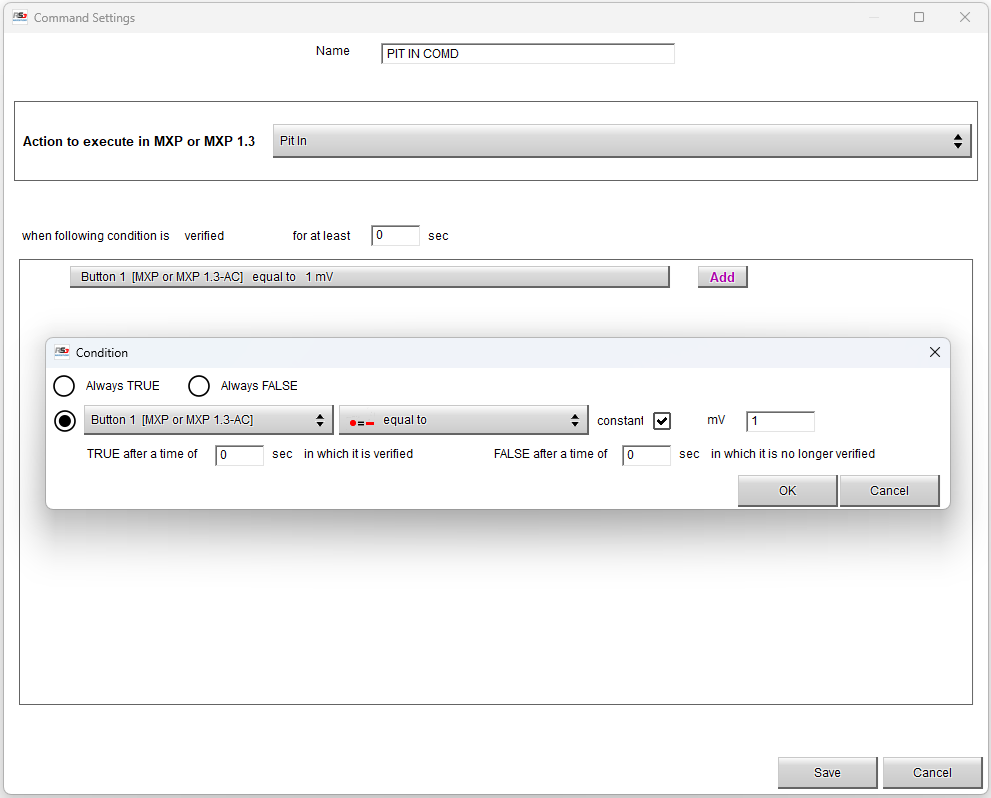
Examples of actions:
Display Pages Triggers – when a condition occurs, switch the dash to another page
Display Buttons Triggers – when a condition occurs, simulate a button press
Reset Alarm Triggers – when a condition occurs, reset a previously triggered alarm
Pit Events Triggers – when a condition occurs, act as if the pit IN or OUT lines are passed (not available in the release version)
A condition that could trigger the previous actions is the value of a channel going over (or under) a certain threshold or the value of a channel being equal to a specific value.
Please notice that multiple conditions can be logically combined into one condition.
Look at what in User Pit Lane (not available in the release version) for a complete perspective on pit lanes management.
Configuration of Power Outputs
Configure power supply to external electrical/electronic components and define activation conditions.
Configuration of Display
AiM dashes can display multiple pages, each showing data from channels, laps, predictive time, coordinates, etc. Configure page layouts and information display here.
Configuration Icons Manager
If the display supports icons, configure them in this window. You can also create custom icons.
Configuration of SmartyCam Stream
Configure data streaming to AiM SmartyCams, including protocol and channels to stream.
Configuration of CAN Output
Configure output messages for AiM devices based on CAN buses (ECU/CAN1 and CAN2), including channels, laps, predictive time, coordinates, etc.